Backdrops & Floor
Backdrop
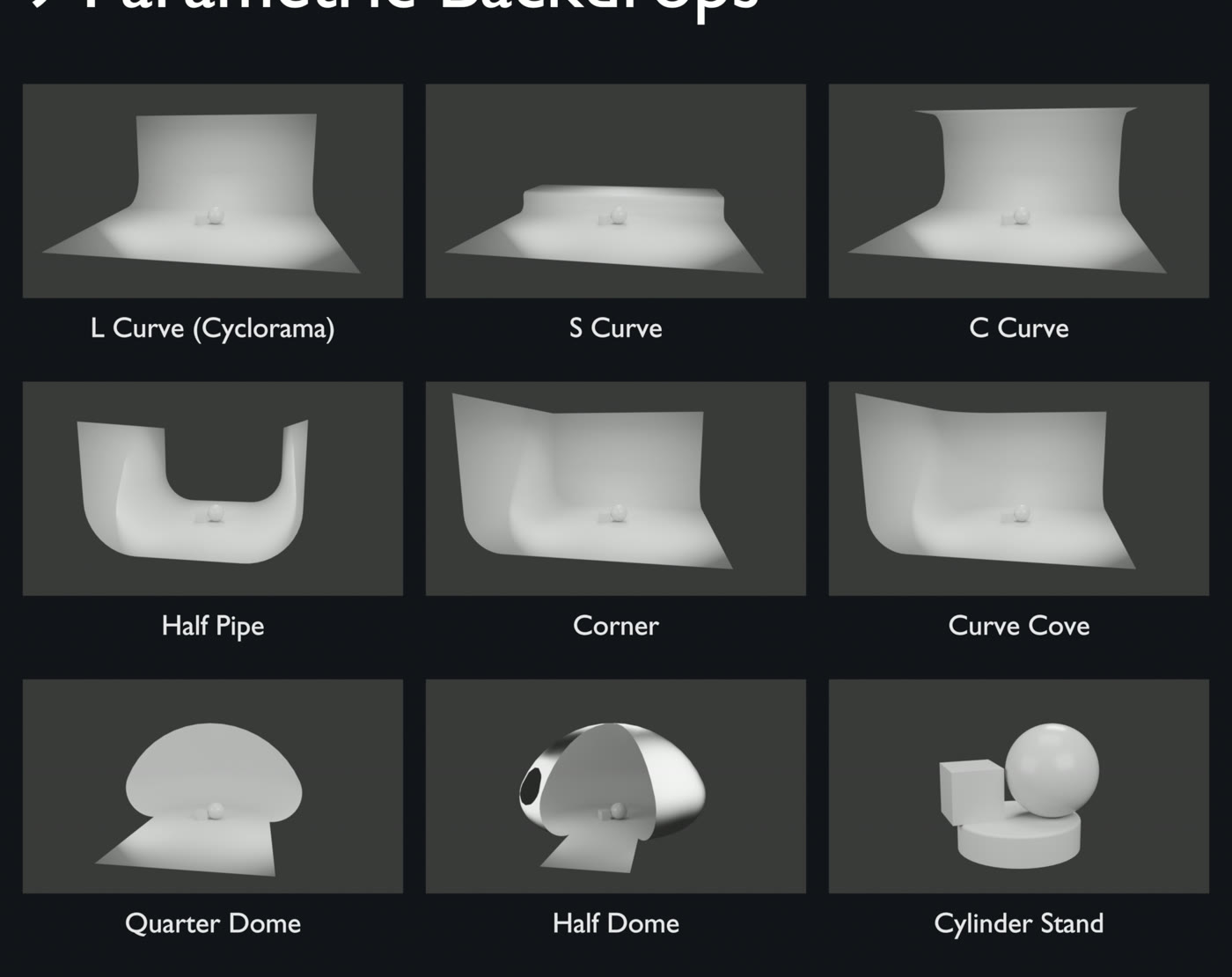
Open Backdrop, choose a shape and click Add. A rig has one backdrop. Applying a kit creates one for you if Set Backdrop is on.
| Shape | What it is |
|---|---|
| L Curve (Cyclorama) | Floor sweeping up into one back wall |
| S Curve | Floor stepping up to a raised plateau |
| C Curve | Floor, back wall and an overhanging ceiling |
| Half Pipe | Floor between two curved side walls |
| Corner | Back wall and side wall meeting at a sharp corner |
| Curve Cove | Back wall and side wall with a rounded corner |
| Quarter Dome | Half-dome shell wrapping behind the subject |
| Half Dome | Dome shell around the subject, open at the front |
| Cylinder Stand | Round product pedestal |
Controls
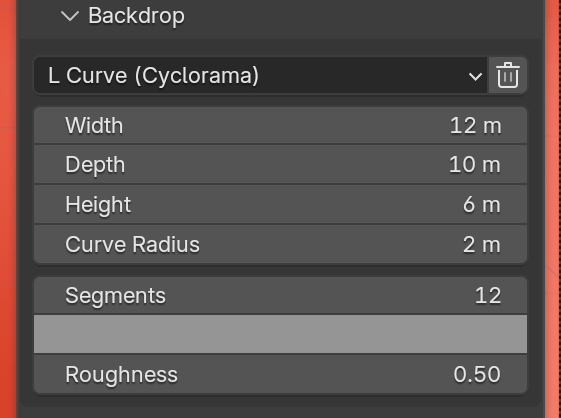
- Shape dropdown switches shape. The new shape loads its own default sizes.
- Size controls change with the shape: Width, Depth, Height, the curve radii, Wrap for the domes and Side for Corner and Curve Cove.
- Segments sets how smooth the curves are.
- The colour swatch and Roughness set the backdrop's material.
- The trash icon removes the backdrop.
Everything stays editable after you add the backdrop.
Floor
Open Floor, set Floor Size and click Add Shadow Catcher. The floor is invisible in the render except for the shadows that fall on it, so your model can sit on a transparent or HDRI background. It works in Cycles and EEVEE.
Note
The backdrop and floor do not follow Rig Transform. Use Fit Rig to Selection to move them under a model.