Studio Kits
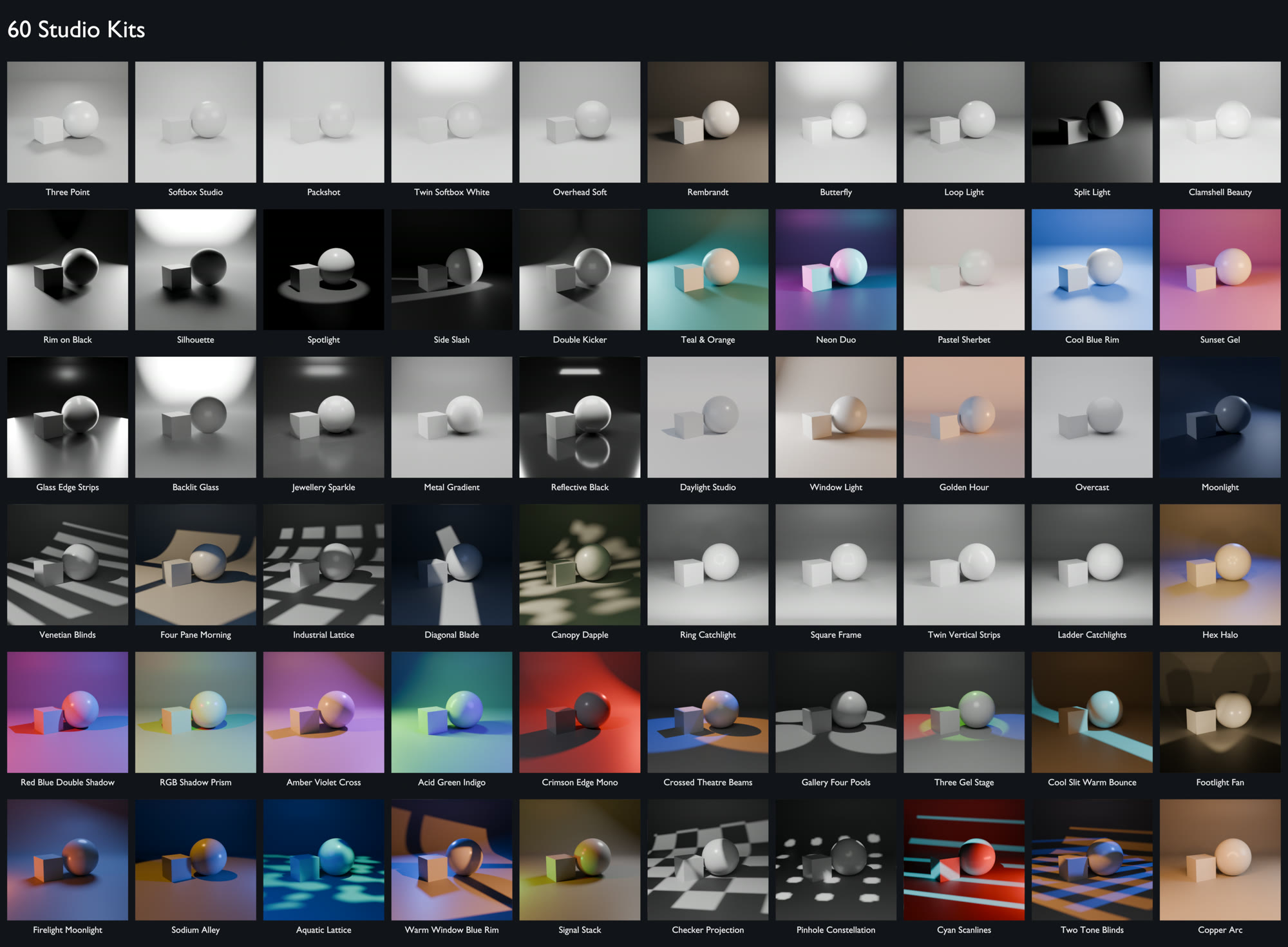
A kit is a complete look: the lights, the world colour and the backdrop colour. RedLight ships 60 of them in 7 categories.
Applying a kit
- Open Studio Kits.
- Choose a category in the dropdown, or leave it on All Kits.
- Click the thumbnail to open the grid and pick a kit. Its description appears under the thumbnail.
- Click Apply Kit.
What a swap keeps
Applying a kit replaces only the lights that came from a kit. It keeps:
- lights you added with Add Light,
- the floor and cameras,
- your backdrop's shape and size (only its colour changes).
Set World and Set Backdrop
Two toggles under Apply Kit, both on by default.
| Toggle | On | Off |
|---|---|---|
| Set World | The kit sets the world (background) colour. This replaces a RedLight HDRI. | Your world is left alone. Use this to keep an HDRI. |
| Set Backdrop | The kit sets the backdrop colour, and creates its backdrop if the rig has none. | No backdrop is created or recoloured. |
Categories
| Category | Kits | For |
|---|---|---|
| Product | 5 | Clean, even light for products and packshots |
| Portrait | 5 | Classic portrait patterns for characters and busts |
| Dramatic | 10 | Low-key, hard-light and stage looks |
| Colour Mood | 12 | Coloured gels, tinted sets and coloured shadows |
| Glass & Jewellery | 11 | Edge strips and shaped reflections for glossy surfaces |
| Natural | 5 | Sun, sky and window looks |
| Projection | 12 | Patterns: blinds, windows, grids, dapple, scanlines |
Every kit is listed with its preview in the Kit List.
Projection kits
Projection kits throw a pattern across the scene. Each one places a black mask with holes in it in front of a spot light, so the pattern is a real shadow. That is why they work in EEVEE as well as Cycles.
- The mask is parented to its light. Move or aim the light and the pattern follows.
- The mask cannot be selected in the viewport, so you can't knock it out of place. It is hidden from the camera.
- Deleting the light, or swapping the kit, removes its mask.
- A larger Radius on the light gives softer pattern edges.