Gobo & IES
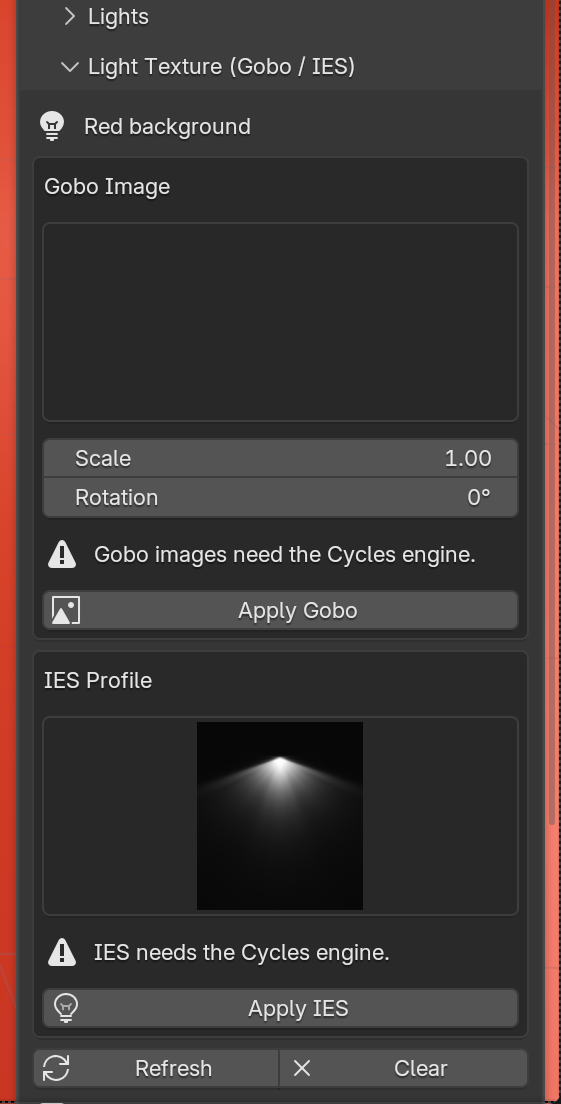
The Light Texture (Gobo / IES) section shapes the beam of a single light.
Cycles only
Gobo images and IES profiles only render in Cycles. EEVEE ignores them, and the panel shows a warning when the render engine is not Cycles. For patterns in EEVEE, use the Projection studio kits.
Which light?
The section acts on the selected light: the active light in the viewport, or the highlighted row in the Lights list. Its name is shown at the top. To texture several lights, select each one and click Apply again.
Gobo image
A gobo projects an image through the light, like a slide. It works best on a Spot light.
- Set Gobo / IES Folder in the add-on preferences to a folder of images
(
.png,.jpg,.tif,.tga,.bmp). White lets light through, black blocks it. - Click Refresh, pick an image in the grid and click Apply Gobo.
- Scale and Rotation adjust the projection.
No gobo images are bundled in version 1.0.
IES profile
An IES profile gives a light the real spread pattern of a physical fixture. It suits Spot and Point lights.
- Pick a profile in the grid. 32 profiles are bundled.
- Click Apply IES.
Your own .ies files in the Gobo / IES Folder appear in the same grid.
Clear
Clear removes the gobo or IES from the selected light.
Credits
The bundled profiles are the IES Lights Pack by LeoMoon, GPL-3.0, redistributed unmodified.